Quiz Set and Quiz
This guide explains how to create and use a Quiz Set and Quiz.
Create Quiz Set & Quiz
You can create and run a fully customizable quiz, questionnaire or article in ClassClicker. The Quiz Set and Quiz are stored in the cloud.
Steps to create Quiz Set and Quiz
- Click the Quiz Sets icon from Menu.
- Click the Create Quiz button in the Quiz Sets page.
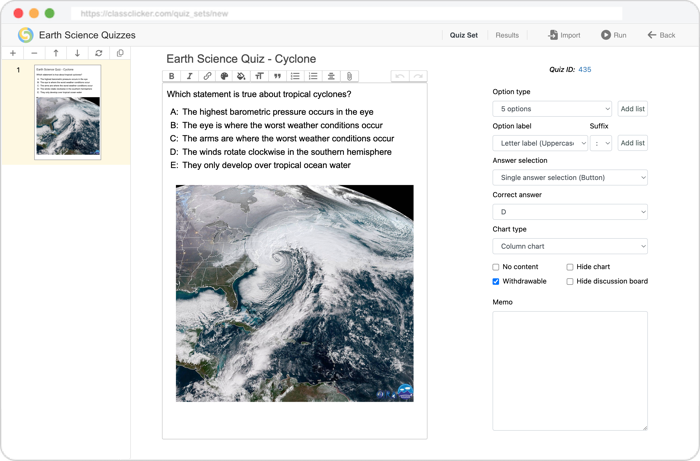
- Enter question or questionnaire information in the Quiz Set page.
- Click the Back button.
- The Quiz Set and Quiz have now been created and the Quiz Set will be shown in the Quiz Sets page.
Header options
- Quiz Set Title
- Enter a Quiz Set title.
- Quiz Set tab
- Click to show Quiz Set page.
- Results tab
- Click to show Quiz Set Result Ranking page.
- Import
- Click to import other Quizzes or Articles.
- Run
- Click to run this Quiz Set.
- Back
- Click to go back to the previous page.
Quiz Set options
- button
- Click to add a new Quiz or Article.
- button
- Click to delete the selected Quizzes or Articles.
- button
- Click to move up the selected Quizzes or Articles.
- button
- Click to move down the selected Quizzes or Articles.
- button
- Click to reverse the order of the selected Quizzes or Articles.
- button
- Click to copy the selected Quizzes or Articles.
Quiz options
- Quiz ID
- Click to show Quiz Result Ranking page.
- Quiz Title
- Enter a Quiz title.
- Quiz / Questionnaire
- Enter Quiz or Questionnaire contents in the text area.
- Option type
- Select the number of multiple choice options from 2 to 20, or select Yes/No, True/False, Agree/Disagree, Positive/Negative, Yes/No/Maybe, True/False/Uncertain, Agree/Disagree/Neutral, Positive/Negative/Neutral, Free Number (Numeric input), Free Word (Word input) or Custom Buttons.
- Option label
- Select a label type for the multiple choice options from Number label, Letter label (Uppercase) and Letter label (Lowercase).
- Suffix
- Select a label suffix type for the multiple choice options from colon, period and single parentheses.
- Add list
- Click to add the list of the multiple choice options to the Quiz or Questionnaire contents.
- Answer selection
- Select the number of answers that the voters can select for the Quiz.
- Correct answer
- Select or enter a Correct answer value for the Quiz.
- Chart type
- Select a chart type.
- No content
- Tick the checkbox not to show the Quiz content.
- Withdrawable
- Tick the checkbox to allow voters to withdraw their answers.
- Hide chart
- Tick the checkbox to hide the chart during the progress of vote.
- Hide board
- Tick the checkbox to hide the discussion board during the progress of vote.
- Show comma
- Tick the checkbox to display submitted numeric answers with commas as thousands separators. The Show comma checkbox is only displayed when the Free Number option type is selected.
- Memo
- Enter a memo here.
Editor toolbar buttons
- Bold button
- Click this button to make the selected text bold.
- Italic button
- Click this button to make the selected text italic.
- Link/Embed button
- Select the text you want to link or unlink, or click the Link/Embed button without selecting any text. In the dialog box that appears, enter a URL and click Link or Unlink to create or remove a link. If the entered URL supports embedding, a Yes, embed it button will appear. Clicking this button allows you to embed the video.
- Text color button
- Click this button to open a color picker dialog box, where you can choose a color to apply to the selected text.
- Text background color button
- Click this button to open a color picker dialog box, where you can choose a background color to apply to the selected text.
- Heading button
- Click this button to apply heading formatting to the selected text.
- Quote button
- Click this button to format the selected text as a block quote.
- Option labels
- Click this button to turn the selected lines of text into labeled options.
- Bullets button
- Click this button to turn the selected lines into a bulleted list.
- Centering button
- Click this button to center the selected lines.
- Zoom text button
- Select the font size (0.8–1.5, default 1.0) to apply to the entire text from the options shown when you click this button.
- Zoom image button
- Select the display size (Full–5%, default Full) to apply to all images from the options shown when you click this button.
- Attach files button
- Select an image file from the file picker that appears when you click this button to insert it into the document.
Run Quiz Set
You can start a voting session (class) with a Quiz Set stored in the cloud.
Steps to start a voting session with a Quiz Set
- Click the Quiz Set icon from Menu.
- Click the My Quiz Sets tab or Public Quiz Sets tab to show the Quiz Set list.
- Select a Quiz Set with the checkbox in the Quiz Set list.
- Click the Run button.
- The voting session with the Quiz Set begins.
Run Quiz
You can start a voting session (class) with a Quiz or Questionnaire or multiple Quizzes or Questionnaires stored in the cloud.
Steps to start a voting session with a Quiz or Questionnaire
- Click the Quizzes icon from Menu.
- Click the My Quizzes tab or Public Quizzes tab to show the Quiz list.
- Select a Quiz with the checkbox in the Quiz list.
- Click the Run button.
- The voting session with the Quiz begins.
Steps to start a voting session with multiple Quizzes or Questionnaires
- Click the Quizzes icon from Menu.
- Click the My Quizzes tab or Public Quizzes tab to show the Quiz list.
- Select multiple Quizzes with the checkboxes in the Quiz list.
- Click the Run button.
- The voting session with the Quizzes begins.
Create Quiz Set Link
You can share the Quiz Set link with coworkers or other teachers for them to run the selected Quiz Set, or you can also use the link in the slides of other presentation software such as PowerPoint, Keynote and Google Slides to quickly launch ClassClicker with the Quiz Set.
Steps to create a Quiz Set Link
- Click the Quiz Sets icon from Menu.
- Click the My Quiz Sets tab or Public Quiz Sets tab to show the Quiz Set list.
- Select a Quiz Set with the checkbox in the Quiz Set list.
- Click the button.
- Click the button to copy the link to your system Clipboard.
- You can paste the copied link in the slides of other presentation software.
Note: Checking the Keep me signed in at the Sign in page is helpful to avoid having to sign in every time the link was clicked on the presentation software.
Create Quiz Link
You can share the Quiz link with coworkers or other teachers for them to run the selected Quiz, or you can also use the link in the slides of other presentation software such as PowerPoint, Keynote and Google Slides to quickly launch ClassClicker with the Quiz.
Steps to create a Quiz Link
- Click the Quizzes icon from Menu.
- Click the My Quizzes tab or Public Quizzes tab to show the Quiz list.
- Select a Quiz or multiple Quizzes with the checkbox in the Quiz list.
- Click the button.
- Click the button to copy the link to your system Clipboard.
- You can paste the copied link in the slides of other presentation software.
Note: Checking the Keep me signed in at the Sign in page is helpful to avoid having to sign in every time the link was clicked on the presentation software.
Publish Quiz Set
You can publish a Quiz Set and share the Quiz Set, the Quizzes that belongs to it, as well as the voting results with other presenters.
Note: After published a Quiz Set, the Quiz Set and Quizzes will become unchangeable (but you can delete them at anytime).
Steps to publish a Quiz Set
- Click the Quiz Sets icon from Menu.
- Click the My Quiz Sets tab to show the Quiz Set list.
- Select a Quiz Set with the checkbox in the Quiz Set list.
- Click the button.
- Select Level and Category, then click Publish button
- The Quiz Set will be shown in the Public Quiz Set list.
Publish Quiz
You can publish a Quiz and share the Quiz and the voting results with other presenters.
Note: After published a Quiz, the Quiz will become unchangeable (but you can delete them at anytime).
Steps to publish Quizzes
- Click the Quizzes icon from Menu.
- Click the My Quizzes tab to show the Quiz list.
- Select a Quiz or multiple Quizzes with the checkbox in the Quiz list.
- Click the button.
- Select Level and Category, then click Publish button
- The Quizzes will be shown in the Public Quiz list.